
Your Trackex key and download
Use the Whop account that purchased Trackex. Your payment is verified before your license key and Windows download unlock.
Sign in with WhopNot signed in yet
Your Whop username will appear here after sign-in.
No separate Trackex account or password is needed.
Sign in to retrieve your key
Sign in to securely find your purchase, key and Windows download.
Install Trackex, paste your key and activate online. Licensing verifies silently once every 24 hours while Trackex is open, with up to 7 days offline after successful verification. Temporary connection/server errors do not revoke a valid certificate or extend its offline expiry. Reconnect after the allowance expires; a confirmed signed revocation locks the app. Usage refresh still needs internet. One-time license, up to two Windows devices.
How to update Trackex
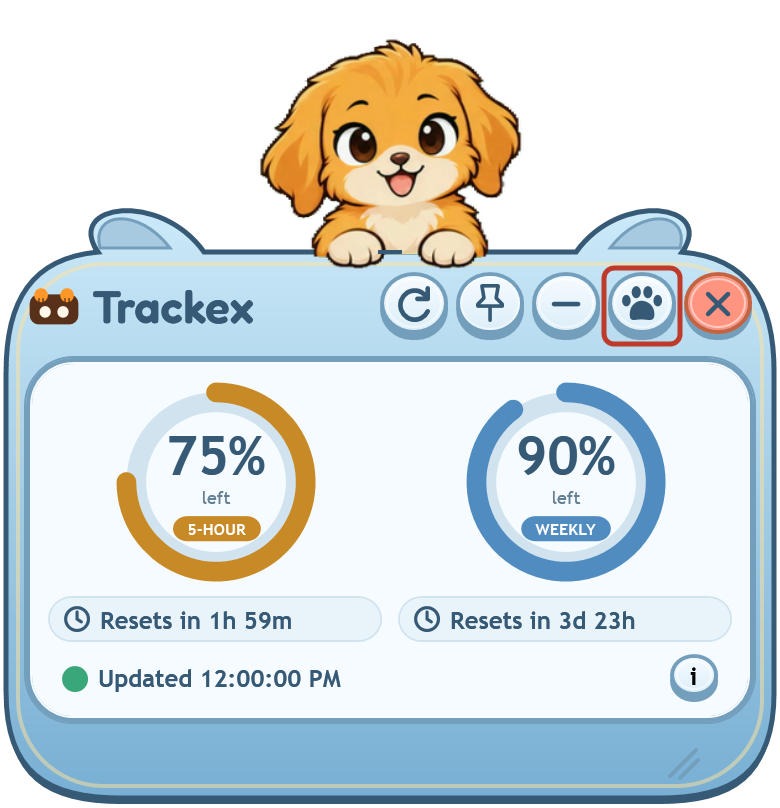
- Open the options menu
Press the paw/options button in the widget header, highlighted below.
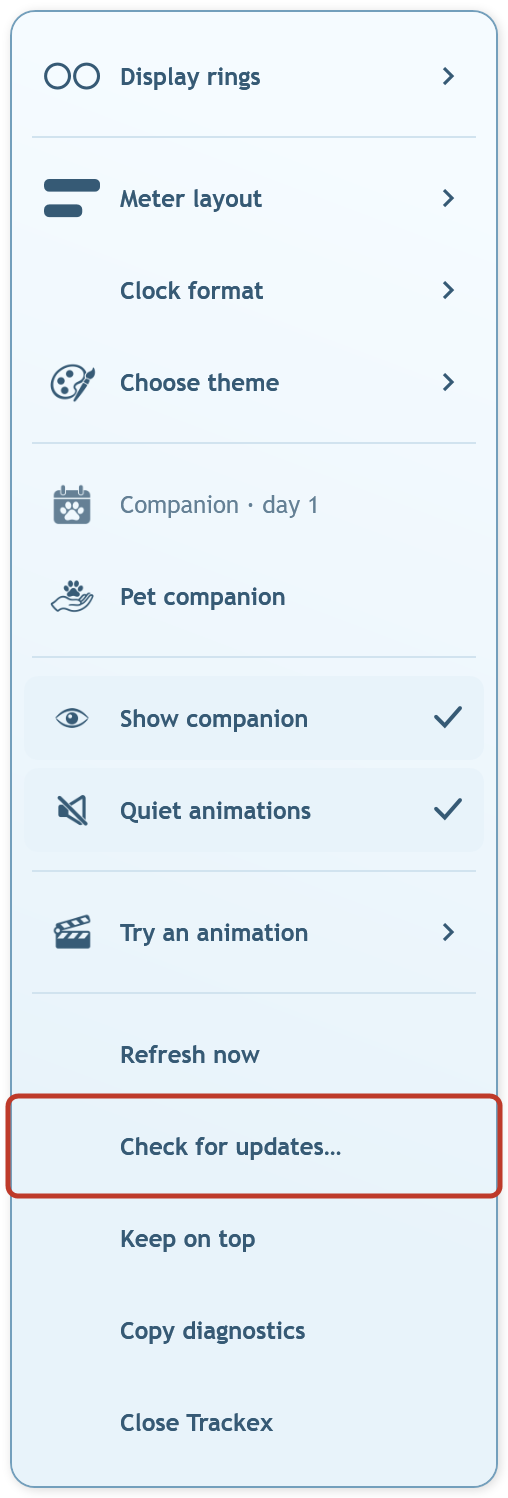
- Select Check for updates…
Choose the highlighted item in the options menu. You can also open this menu by right-clicking the widget.
- Read the update window
It checks automatically. If you are up to date, nothing needs doing. If an update is offered, choose Download update, then Install & restart once it is verified.
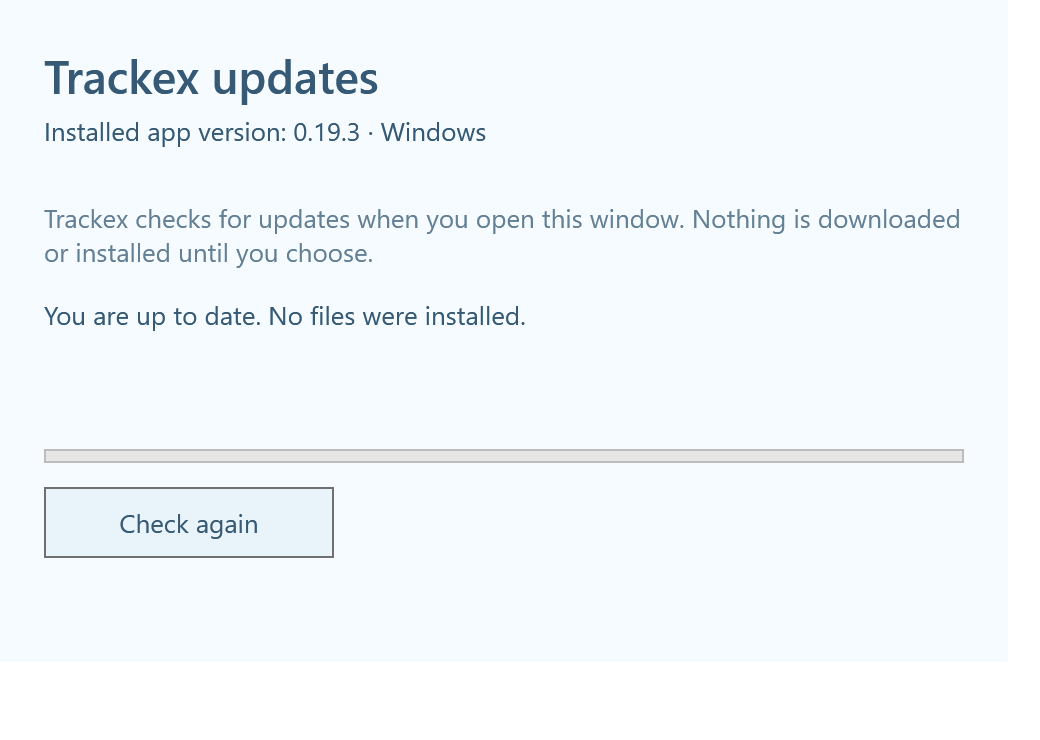
Real app screenshots with demo readings and an example update result. Your percentages, version and update result may differ. No address or test folder is needed.
Whop sends your order confirmation email. Your key and installer are on this page, not in the receipt email.
Privacy notice · Support